Just Build! PC Controls
Keyboard, mouse, and camera habits for cleaner placement in solo or eight-player co-op.
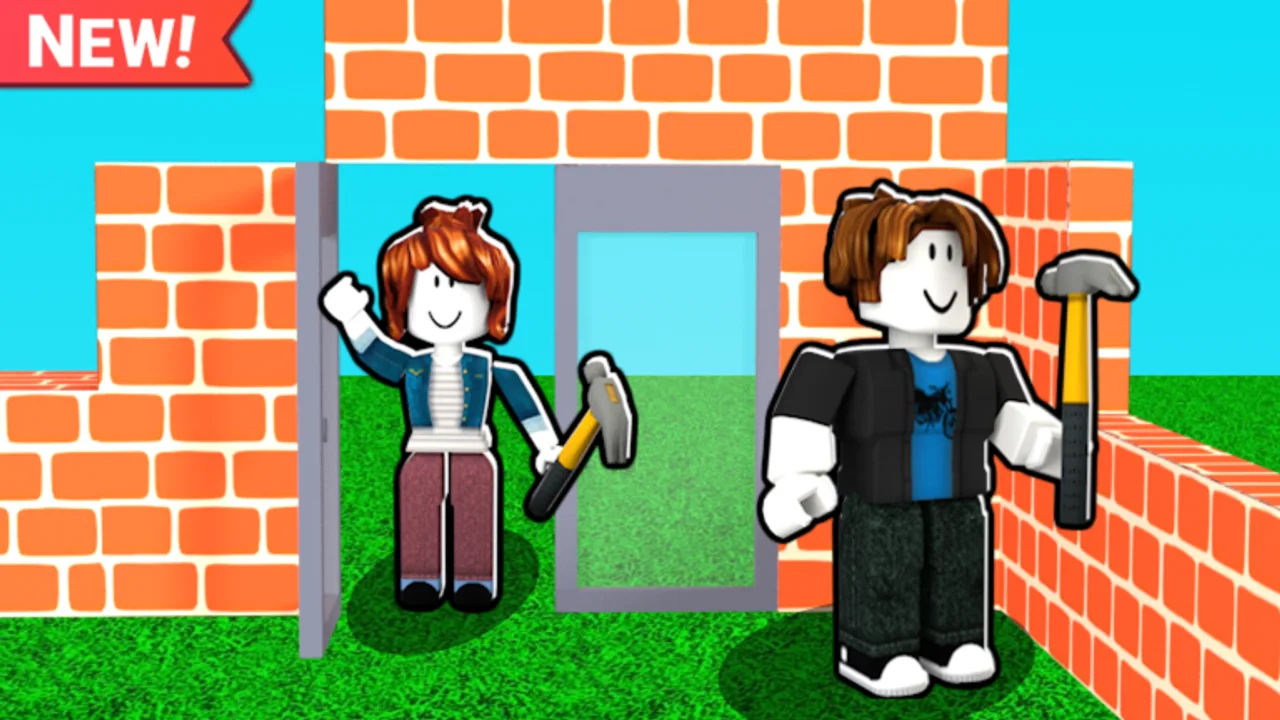
Playing Just Build! on PC (Roblox desktop or compatible clients) gives you the highest placement precision in the sandbox. This guide covers practical keyboard-and-mouse habits for movement, camera work, building, and Game Pass tools. Exact on-screen prompts can vary with Roblox updates - treat the patterns below as a workflow, and confirm any remapped keys in your client settings. For touch play, switch to Mobile Controls. Category home: Controls Hub.
Just Build! by Awesome Fun Games autosaves and supports online co-op with up to eight players. PC players often become the detail specialists in mixed lobbies; your job is clean edges, aligned windows, and careful deletions. There are no active promo codes required to unlock default controls (Codes).
Core movement (WASD baseline)
Most Roblox experiences use WASD to move and Space to jump. In Just Build!, that baseline still matters when you jog between material piles, meet teammates across a wide plot, or climb temporary stairs before anyone buys a mobility pass. Sprint behaviour depends on whether you own 2x Run Speed, Speed Coil, or Fusion Coil - rehearse timing after each purchase listed in All Gamepasses and ranked on Coils Tier List.
PC tip: Keep fingers on WASD even while placing. Lifting your entire hand to hunt for keys is how camera drift starts.
Camera control
Use mouse look to orbit the structure. Before each place action:
- Centre the target face or grid cell.
- Zoom to a distance where neighbouring blocks are obvious.
- Place or paint once.
- Orbit again instead of guessing from a skewed angle.
When you own Higher Build, force yourself to look up in controlled increments. Sky floors are where PC players mis-click empty air because the camera was still aimed at ground clutter. Pair height unlocks with planning notes from Guides and Builds.
Building and selection workflow
Think in a loop: select tool, aim, place, verify, adjust. On PC you can verify faster than on phones, so use that advantage:
- After a wall run, orbit both interior and exterior.
- Check corners from two angles before roofing.
- Delete with the same camera care you use for placement - fast deletes in eight-player co-op are how friendships fracture.
If you use Paint Blocks (~30 Robux approximate), slow the loop. Colour mistakes are easy to spray across a facade when the mouse is hot. Verify the live pass price before buying; see Best Value.
Hotbar and Game Pass tools
PC shines when you treat Game Passes as bindable habits:
Coils
Equip Speed, Gravity, or Fusion deliberately. Do not leave a coil on if it wrecks fine platforming near fragile furniture. Practice a coil-on-for-travel / coil-off-for-detail toggle during the same session.
Grapple Hook
Aim the hook like a precision tool. On mouse, small adjustments beat huge flicks. Clear a practice alley of decorative glass before your first grapples in a shared build (Mobility Tools).
Flying Cloud / Flying Carpet
Flight makes it easy to lose altitude sense. Use keyboard movement in short pulses, stop, place, then fly again. Carpet higher approximate price (~399) does not remove the need for patience.
Ban Hammer
If you own the novelty pass (~1999 approximate), keep it off the active hotbar during serious construction. It is not a layout tool.
Suggested keybind hygiene
Roblox allows various shift-lock and camera mode options. For building sandboxes:
- Prefer a camera mode that lets you free-look without constantly spinning the character into walls.
- Avoid binding critical delete actions next to common movement keys.
- If you use a mouse with extra buttons, map comfort actions there - not delete.
Re-check binds after big Roblox client updates.
Co-op PC etiquette (max 8 players)
- Announce large terrain or facade wipes in chat.
- Zoom to a teammate work before helping.
- Offer to handle straight structural lines while mobile players paint or scout.
- Hosts: park novelty tools until the shell is done.
Autosave protects against crashes; it does not undo grief. Combine this page with social norms from Guides and building habits from Mobile Building when your lobby mixes devices.
Thirty-minute PC practice plan
- Minutes 0-5: Walk the plot edges with default movement; note lag spikes in busy servers.
- Minutes 5-15: Build a small rectangular house focusing on mouse-centred placement only.
- Minutes 15-20: Orbit and fix every misaligned block you find.
- Minutes 20-25: If you own a coil or grapple, travel to the roof once, then unequip.
- Minutes 25-30: Paint or detail one wall slowly; log friction for your next session.
Track checklists in Tools if you like structured sessions.
Troubleshooting common PC issues
| Symptom | Likely cause | Fix |
|---|---|---|
| Blocks float wrong | Camera not square to surface | Orbit and retry |
| Keep deleting neighbours work | Zoomed out too far in co-op | Zoom in; call edits |
| Overshooting with Speed Coil | Coil left equipped while detailing | Unequip for fine work |
| Sky placement misses | Higher Build without upward camera discipline | Step camera up floor by floor |
| Hand fatigue | Marathon clicks without breaks | Micro-breaks; autosave is your friend |
Related links
- Controls Hub
- Mobile Controls
- Gamepasses Hub, All Gamepasses
- Coils Tier List, Mobility Tools
- Guides, Builds, Tools
PC control mastery is boring on purpose: stable camera, deliberate clicks, and tool toggles beat frantic hotbar chaos. Verify any paid movement unlock in-game, then make that unlock earn space on your toolbar.
Frequently Asked Questions
Quick answers to the most common questions.
What keys move my character in Just Build! on PC?
Use the standard Roblox WASD movement and Space to jump unless you remapped keys in the Roblox client. Confirm your personal binds in settings.
How do I place blocks more accurately on PC?
Centre the target surface with the mouse camera, zoom until neighbouring cells are clear, place once, then orbit to verify before continuing.
Should I keep Speed Coil equipped while detailing?
Usually no. Use coils for travel across the plot, then unequip for fine furniture and facade work to avoid overshooting.
Where are mobile controls covered?
See the Mobile Controls page in this same Controls category for touch and tablet guidance.
Do I need Game Passes to use PC controls?
No. Default building works without purchases. Passes add optional tools and movement behaviours you learn on top of the baseline.